How to Protect PDF Files with a Password and Prevent Copying & Editing (Complete Security Guide 2026)
Technology
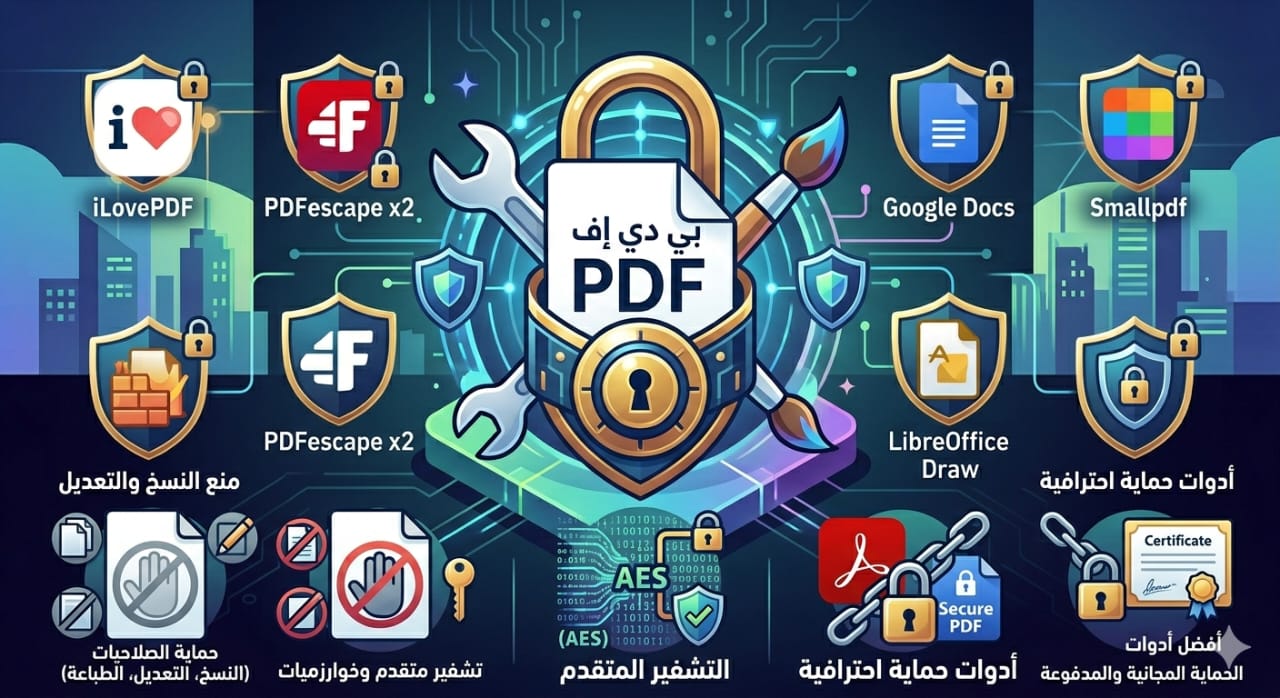
You can protect PDF files with a password and prevent copying or editing using online tools or software like Adobe Acrobat. These tools allow you to encrypt your file and set user permissions to block printing, copying, or modifying the content within minutes.
Introduction
In a world increasingly dependent on digital file sharing, protecting sensitive data has become essential for both individuals and businesses. Among the most widely used file formats, PDF files stand out due to their reliability in preserving document layout across all devices.
However, the main challenge is that PDF files can be easily copied, edited, or reused if they are not properly secured. This raises an important question: how to protect PDF files with a password and prevent copying and editing effectively.
In this advanced guide, you will learn:
- How to password-protect PDF files
- How to prevent copying, printing, and editing
- The best PDF security tools
- Differences between encryption types
- Common security issues and solutions
- Advanced protection strategies
What Does PDF Security Mean?
PDF security refers to protecting a document using techniques such as:
- Password protection
- Encryption
- Permission restrictions
Why Do You Need to Protect PDF Files?
- Protect sensitive information
- Prevent intellectual property theft
- Secure contracts and official documents
- Control who can access the file
Types of PDF Protection
Open Password Protection
Prevents users from opening the file without a password.
Permissions Password
Allows opening the file but restricts:
- Copying
- Editing
- Printing
Advanced Encryption
Uses algorithms like AES to secure file data.
How to Password Protect a PDF (Step by Step)
Using Online Tools
- Open a PDF protection tool
- Upload your file
- Enter a password
- Apply protection
- Download the secured file
✔ Fast and beginner-friendly
Using Adobe Acrobat
- Open your PDF file
- Select “Protect”
- Set a password
- Configure permissions
- Save the document
✔ Professional-level security
How to Prevent Copying and Editing in PDF
Disable Copying
Prevents users from selecting or copying text.
Restrict Editing
Blocks modifications to content.
Disable Printing
Prevents printing of the document.
Best PDF Protection Tools
Free Tools
- Online PDF security tools
- Google Docs
Professional Tools
- Adobe Acrobat
- Advanced paid PDF editors
Comparison of Protection Methods
| Method | Security | Ease of Use | Best For |
| Password | Good | Easy | Beginners |
| Permissions | Very Good | Medium | Intermediate |
| Encryption | Excellent | Advanced | Professionals |
Best Practices for PDF Security
- Use strong passwords
- Avoid sharing passwords publicly
- Enable AES encryption
- Keep tools updated
Common PDF Security Issues
Weak Password
✔ Solution: Use a complex password
Protection Can Be Bypassed
✔ Solution: Use strong encryption
Forgotten Password
✔ Solution: Store it in a password manager
Professional Workflow for Securing PDFs
- Analyze the document
- Choose the protection type
- Apply encryption
- Test security settings
- Save the final version
Use Cases for PDF Protection
- Contracts
- Legal documents
- Paid ebooks
- Business reports
People Also Ask (FAQ)
❓ Can I protect a PDF with a password?
Yes, you can easily protect PDF files using online tools or software like Adobe Acrobat.
❓ Can I prevent copying from a PDF?
Yes, by applying permission restrictions.
❓ Can I prevent editing in a PDF?
Yes, by disabling editing permissions.
Conclusion
Protecting PDF files is no longer optional—it is essential in today’s digital environment.
By using the right tools, you can:
✔ Password-protect your files
✔ Prevent copying and editing
✔ Fully secure your data