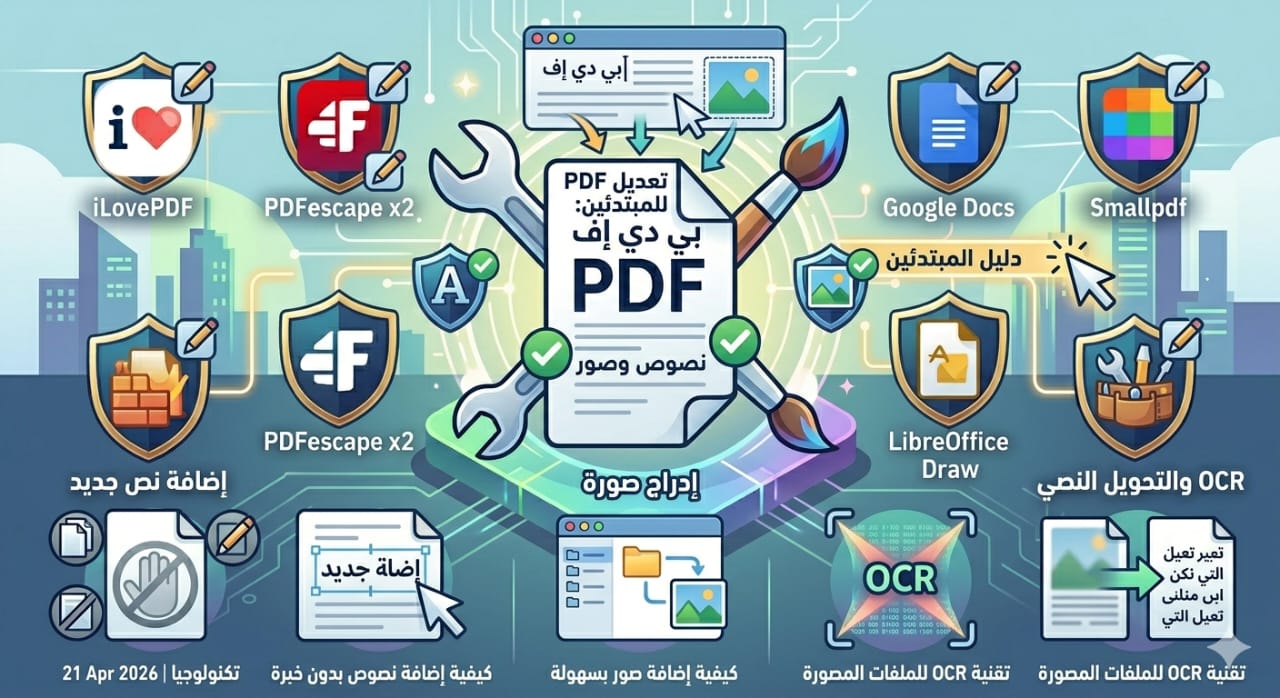
How to Add Text and Images to a PDF Without Experience (Complete Guide 2026)
Technology
In today’s digital transformation era, PDF files have become one of the most widely used formats in the world, whether in education, business, or official documentation. However, many users face a common challenge: how to add text and images to a PDF without experience.
PDF files are designed to preserve fixed formatting, which makes editing more difficult compared to Word documents. But with modern technology, powerful tools based on artificial intelligence and cloud editing have made PDF modification easier than ever before.
This complete guide is not just a basic tutorial—it is a full system covering:
- Basic and advanced PDF editing
- Adding text and images
- Technical solutions
- Free and professional tools
- Common problems and fixes
- Quality improvement techniques
- Professional workflow strategies
A PDF (Portable Document Format) is a file format designed to preserve document layout regardless of device or operating system.
- Preserves formatting across devices
- Works on all platforms
- Ideal for official printing
- High security for sharing
- Content remains unchanged
- Difficult to edit directly
- Requires special tools
- Less flexible than Word files
Editing a PDF includes modifying or enhancing its content such as:
- Inserting new information
- Editing existing content
- Adding notes or comments
- Visual illustrations
- Company logos
- Charts and graphics
- Changing fonts
- Rearranging content
- Improving overall design
Users want a quick solution without learning complex software.
Avoid installing heavy applications.
Editing can be done within minutes.
Mobile, desktop, or tablet.
- Easy to edit
- Supports copy and modification
- Requires OCR technology
- More difficult to edit
- Requires unlocking or permissions removal
- Open a PDF editor tool
- Upload your file
- Select “Edit PDF”
- Click where you want to add text
- Type your content
- Save the file
- Choose readable fonts
- Adjust size properly
- Use proper alignment
- Open the PDF file
- Select “Insert Image”
- Upload your image
- Place it in the desired location
- Resize if needed
- Save the document
- Use PNG or JPG formats
- Avoid blurry images
- Maintain proper resolution
- Online PDF editors
- Google Docs
- Browser-based tools
- Adobe Acrobat
- Advanced paid PDF editors
| Tool | Quality | Ease of Use | Best For |
| Online Tools | Good | Easy | Beginners |
| Google Docs | Very Good | Medium | Students |
| Adobe Acrobat | Excellent | Medium | Professionals |
- Determine if it is text-based or scanned
- Based on file type
- Add text and images
- Check formatting carefully
OCR (Optical Character Recognition) converts images inside PDFs into editable text.
- Scanned PDFs
- Printed books
- Image-based documents
- Converts images into text
- Supports multiple languages
- Improves editing accuracy
✔ Use professional PDF tools
✔ Use PNG or JPG formats
✔ Use OCR tools or convert to Word first
✔ Use tools that support RTL languages
- Ebooks editing
- Business contracts
- Company reports
- Freelancing projects
- Educational materials
Yes, you can use online PDF editing tools directly in your browser.
Yes, most PDF editors allow drag-and-drop image insertion.
No, modern tools are designed for beginners.
It may be scanned or protected and require OCR or unlocking.
Adding text and images to PDF files without experience has become extremely easy thanks to modern online tools. Anyone can now edit PDFs directly in the browser without software or technical skills.
All you need is:
✔ The right tool
✔ Simple steps
✔ Proper formatting
✔ Final review