Edit PDF Without Watermark Using Free Tools (Complete Guide 2026 Without Losing Quality)
Technology
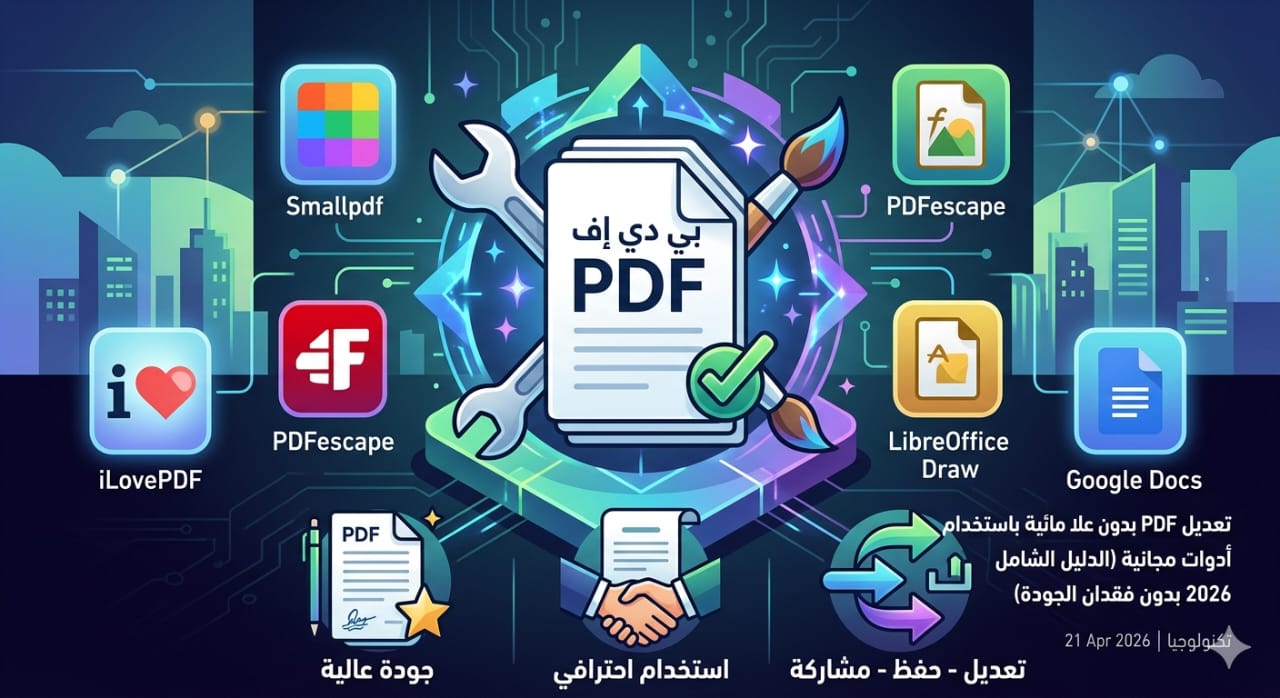
You can edit PDF files without a watermark using free online tools like Smallpdf, iLovePDF, and PDFescape. These tools allow you to modify text and images directly in your PDF without adding a watermark, while maintaining high quality in just a few minutes.
Introduction
As digital file usage continues to grow, PDF has become one of the most widely used formats in business, education, and marketing. However, one of the biggest frustrations users face is the appearance of a watermark when using free PDF editing tools.
This is why many people search for: how to edit PDF without watermark using free tools.
In this professional guide, you will learn:
- How to edit PDF files for free without watermark
- The best tools that don’t add watermarks
- Differences between free and paid tools
- How to maintain file quality
- Common issues and solutions
- Advanced strategies for perfect results
What Does Editing PDF Without Watermark Mean?
Editing a PDF without watermark means modifying the file (text, images, pages) using tools that do not add any branding or watermark to the final document.
Why Do Watermarks Appear?
- To protect tool ownership
- To encourage paid upgrades
- Due to free version limitations
Why Should You Avoid Watermarks?
- Reduces professionalism
- Not suitable for official work
- Affects document appearance
Best Free PDF Editors Without Watermark
Free Online Tools
1. Smallpdf
✔ No watermark in most tools
✔ Easy-to-use interface
2. iLovePDF
✔ Completely free
✔ Multiple features
3. PDFescape
✔ Direct editing
✔ Beginner-friendly
Advanced Free Tools (No Watermark)
4. LibreOffice Draw
✔ Fully free
✔ No limitations
5. Google Docs
✔ Free
✔ No watermark added
How to Edit PDF Without Watermark (Step by Step)
Online Method
- Open a tool like Smallpdf
- Upload your PDF file
- Click “Edit”
- Modify text or images
- Download the file without watermark
Using Google Docs
- Upload the file to Google Docs
- Open it
- Edit the content
- Download it as PDF
How to Maintain Quality After Editing
- Use high-quality PDF files
- Avoid excessive compression
- Choose tools that preserve formatting
- Review fonts and layout
Common Problems and Solutions
Watermark Appears
✔ Solution: Use truly free tools
Formatting Issues
✔ Solution: Use tools with “Preserve Formatting”
Unclear Text
✔ Solution: Use OCR tools
What is OCR Technology?
OCR (Optical Character Recognition) converts scanned images into editable text.
Uses:
- Scanned PDFs
- Digitized books
Tools Comparison
| Tool | Watermark | Quality | Ease of Use |
| Smallpdf | No | High | Easy |
| iLovePDF | No | Good | Easy |
| Google Docs | No | Medium | Easy |
| LibreOffice | No | Excellent | Medium |
Professional Workflow
- Identify file type
- Choose the right tool
- Edit content
- Review formatting
- Export final file
Use Cases
- Freelancing
- Business documents
- Ebooks
- Contracts
- Marketing materials
People Also Ask (FAQ)
❓ Can I edit PDF without watermark?
Yes, using reliable free tools like Smallpdf or iLovePDF.
❓ Are free tools safe?
Yes, if they are well-known and trusted.
❓ Will I lose quality after editing?
No, if you use high-quality tools.
Conclusion
Editing PDF files without a watermark is now easier than ever thanks to modern free tools.
✔ Choose the right tool
✔ Avoid low-quality platforms
✔ Maintain formatting and quality
✔ Always review the final file