Best Camera Settings for Samsung Galaxy S25 Ultra to Capture Professional Photos in 2026
Technology
Smartphone photography has evolved dramatically over the past decade. What once required a DSLR camera can now be achieved with a device that fits in your pocket. Among the latest innovations, the Samsung Galaxy S25 Ultra stands out as one of the most powerful camera smartphones available in 2026.
Featuring an advanced multi-lens camera system, cutting-edge AI image processing, and an incredibly detailed 200-megapixel primary sensor, this device is designed to push the boundaries of mobile photography.
However, many users never unlock the true potential of their phone’s camera. The default settings are optimized for general use, but they rarely deliver the best possible image quality. By adjusting the right settings, understanding lighting, and applying a few professional techniques, you can capture photos that look as if they were taken with a professional camera.
This comprehensive guide will teach you:
- The best camera settings for Samsung Galaxy S25 Ultra
- How to take professional photos using your smartphone
- Advanced photography techniques used by professionals
- The best video recording settings for content creators
- Night photography tips for stunning low-light images
By the end of this guide, you’ll be able to transform your smartphone photography skills and capture professional-level photos with your Galaxy S25 Ultra.
Understanding the Samsung Galaxy S25 Ultra Camera System
Before diving into camera settings, it’s important to understand the powerful hardware behind the Galaxy S25 Ultra.
Samsung equipped this flagship smartphone with one of the most advanced mobile camera systems ever developed.
Main Camera System
The device includes multiple lenses designed for different shooting scenarios:
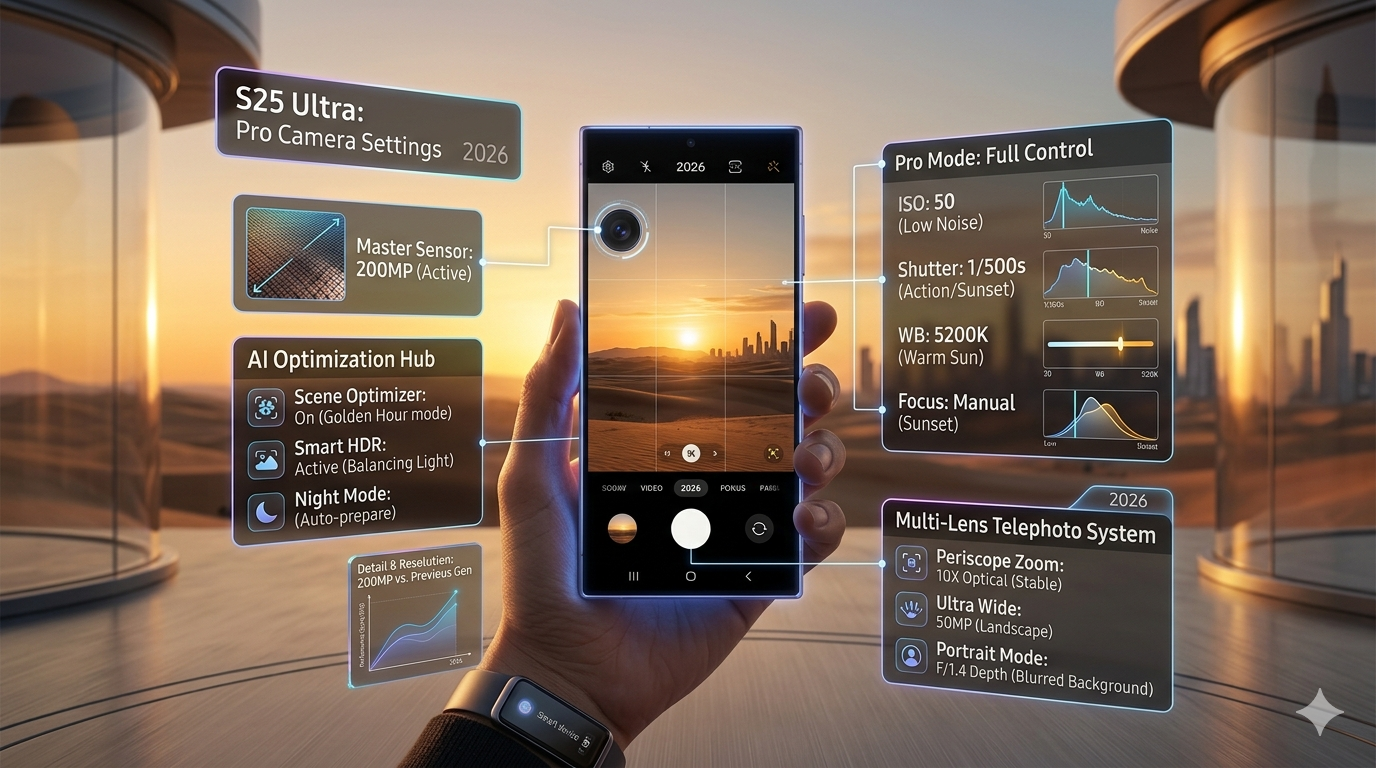
- 200MP Wide Camera – Ultra-high-resolution primary sensor
- 50MP Ultra-Wide Camera – Perfect for landscapes and group photos
- Telephoto Camera – Optical zoom for distant subjects
- Periscope Zoom Lens – Advanced long-distance photography
- High-Resolution Front Camera – Designed for selfies and video calls
This combination allows the phone to handle virtually any photography scenario, from landscapes to portraits to macro shots.
But to fully benefit from this powerful system, you must adjust the settings according to your shooting conditions.
Best Camera Settings for Professional Photos
The Galaxy S25 Ultra offers numerous camera options. Below are the most important settings to adjust for the best possible results.
Enable 200MP Mode for Maximum Detail
By default, Samsung uses pixel binning technology to combine multiple pixels into one. This improves low-light performance but reduces overall resolution.
If you want maximum detail, you should switch to 200-megapixel mode.
How to Enable It
- Open the Camera app
- Tap the resolution icon
- Select 200MP mode
When to Use 200MP Mode
This mode works best for:
- Landscape photography
- Architecture photography
- Highly detailed scenes
- Photos intended for cropping or printing
The result is extremely detailed images that retain clarity even when zoomed in.
Turn On Smart HDR
High Dynamic Range (HDR) helps balance exposure between bright and dark areas of an image.
Without HDR, photos taken in bright sunlight may have blown-out highlights or overly dark shadows.
Benefits of Smart HDR
- Balanced lighting across the image
- Improved sky details
- Better contrast and color accuracy
HDR is particularly useful when shooting outdoors or during sunrise and sunset.
Enable Scene Optimizer
Samsung uses AI technology to analyze scenes and automatically adjust camera settings.
The Scene Optimizer feature can detect:
- Food
- Landscapes
- Pets
- Text
- Flowers
- Sunsets
Once detected, the camera adjusts color, contrast, and sharpness to improve the image.
This feature is ideal for beginners who want professional-looking photos without manually adjusting settings.
Use Pro Mode for Advanced Photography
One of the most powerful features of the Galaxy S25 Ultra is Pro Mode.
This mode gives you full manual control over camera settings similar to a professional camera.
Key Controls in Pro Mode
You can manually adjust:
- ISO
- Shutter speed
- Focus
- White balance
- Exposure
Recommended Beginner Settings
For daylight photography:
ISO: 50–100
Shutter Speed: Auto
White Balance: Auto
For night photography:
ISO: 400–800
Shutter Speed: Slower exposure
Learning to use Pro Mode allows you to control how your photos look rather than relying entirely on automatic adjustments.
Best Night Photography Settings
Night photography is one of the areas where modern smartphones have improved the most.
The Galaxy S25 Ultra uses advanced AI processing and multi-frame exposure to capture clear images in low-light environments.
Recommended Night Mode Settings
- Enable Night Mode
- Use ISO around 400
- Keep the phone steady
Pro Tips for Night Photography
- Use a tripod whenever possible
- Avoid using digital zoom
- Shoot in areas with some ambient light
These tips will help you capture bright, detailed night photos without excessive noise.
Best Portrait Photography Settings
Portrait mode creates a shallow depth-of-field effect, blurring the background while keeping the subject sharp.
Recommended Portrait Settings
Blur Level: Medium
Lighting Mode: Natural
Focus: Face detection enabled
Portrait Photography Tips
- Keep the subject about 1–2 meters away
- Ensure the background is further away than the subject
- Use natural lighting whenever possible
These small adjustments dramatically improve portrait photography.
Best Video Recording Settings
The Galaxy S25 Ultra is also an excellent device for video creators.
Whether you’re recording YouTube videos, social media content, or family memories, using the right settings makes a huge difference.
Recommended Video Settings
Resolution: 4K
Frame Rate: 60fps
Stabilization: Enabled
Why These Settings Matter
4K resolution provides sharp footage, while 60fps creates smoother motion.
Stabilization helps reduce camera shake, which is essential when filming handheld videos.
Professional Smartphone Photography Tips
Beyond camera settings, photography techniques play a major role in image quality.
Here are several techniques used by professional photographers.
Use the Golden Hour
The best natural lighting occurs shortly after sunrise and just before sunset.
This time of day is known as the Golden Hour.
Golden hour lighting produces:
- Warm colors
- Soft shadows
- Balanced contrast
Many professional photographers prefer shooting during this time because it enhances the overall mood of the image.
Apply the Rule of Thirds
Composition is just as important as camera settings.
The Rule of Thirds divides the frame into a 3×3 grid and encourages placing the subject off-center.
How to Enable Grid Lines
- Open Camera Settings
- Turn on Grid Lines
Using this technique creates more visually appealing images.
Keep the Camera Lens Clean
One of the simplest yet most overlooked photography tips is cleaning the camera lens.
Fingerprints and dust can significantly reduce image quality.
Before taking photos, quickly wipe the lens with a microfiber cloth.
Avoid Excessive Digital Zoom
Although the Galaxy S25 Ultra offers powerful zoom capabilities, excessive digital zoom can still reduce image quality.
Whenever possible:
- Move closer to the subject
- Use optical zoom instead of digital zoom
This helps maintain image sharpness.
Experiment with Different Angles
Professional photographers rarely take photos from eye level.
Instead, they experiment with different angles:
- Low-angle shots
- High-angle shots
- Close-up compositions
Changing your perspective can dramatically improve your photos.
Editing Your Photos for Better Results
Even professional photographers edit their images after capturing them.
Photo editing can enhance:
- Color balance
- Contrast
- Sharpness
- Highlights and shadows
Popular editing apps include:
- Adobe Lightroom
- Snapseed
- Samsung Gallery Editor
Editing allows you to fine-tune your images and achieve a polished, professional look.
Common Photography Mistakes to Avoid
Even with the best camera settings, certain mistakes can ruin a photo.
Here are the most common ones:
- Shooting in poor lighting conditions
- Using excessive digital zoom
- Forgetting to clean the camera lens
- Holding the phone unsteadily
- Ignoring composition techniques
Avoiding these mistakes can significantly improve your photography.
Featured Snippet Optimized Answer
What are the best camera settings for Samsung Galaxy S25 Ultra?
The best camera settings for professional photos include:
- Enable 200MP mode for maximum detail
- Turn on Smart HDR for balanced lighting
- Use Night Mode for low-light photography
- Record videos in 4K at 60fps
- Enable Scene Optimizer for AI-enhanced photos
These settings help maximize the performance of the Galaxy S25 Ultra camera system.
Conclusion
The Samsung Galaxy S25 Ultra is one of the most powerful smartphone cameras ever created. With the right settings and techniques, it can produce photos that rival professional cameras.
By enabling high-resolution shooting modes, using HDR and Night Mode effectively, and applying photography fundamentals such as composition and lighting, you can dramatically improve your images.
Whether you’re capturing landscapes, portraits, or cinematic videos, mastering these camera settings will allow you to unlock the full potential of your Galaxy S25 Ultra camera.